
This guide explains how to change the email password for a cPanel email account or altering the mailbox quota (mailbox size limit).
If you do not know your direct cPanel login, you can also log in through the Client Area > Services > My Services > and click "Launch cPanel" next to your hosting plan.
Changing an email account password
- Within the cPanel Email section, click Email Accounts
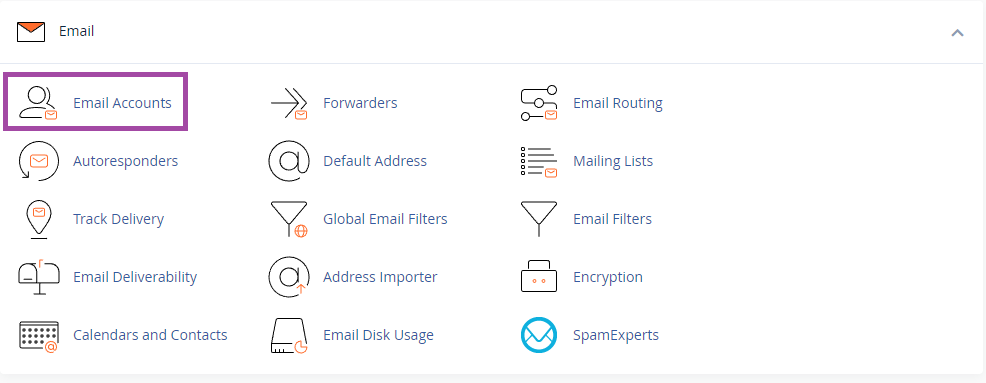
- Click Manage next to the email address you'd like to change
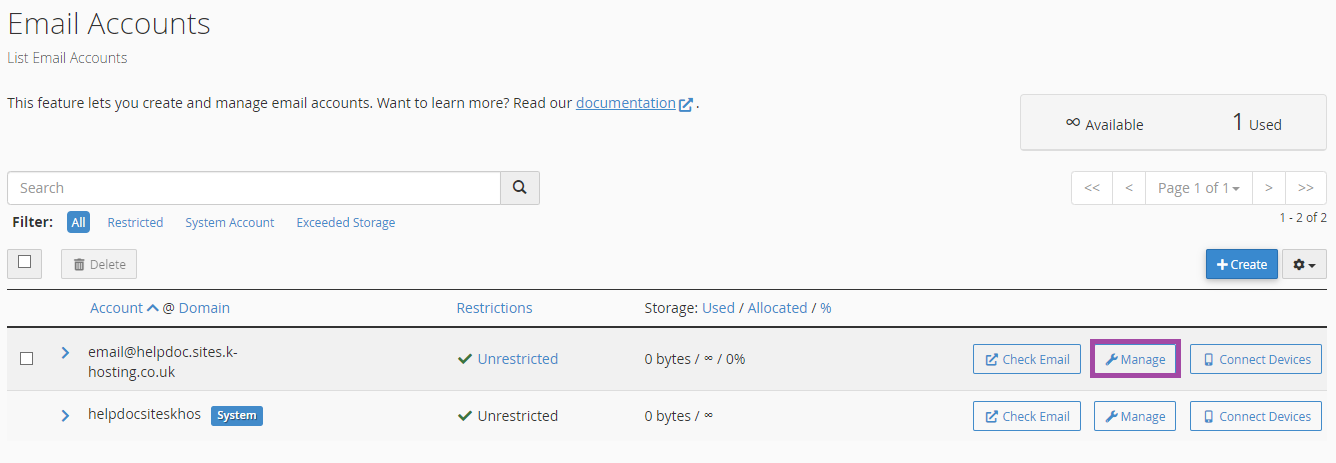
- Enter a new password in the New Password field

- Click Update email settings to complete the process.
Clicking the eye icon hides or reveals the password as you type. The Generate button will create a password for you - you can click the drop-down arrow to change the password length and included characters - copy the generated password from the Password field into the Password (Again) field before clicking Update Email Settings.
Changing an email account quota
Disk space used by your mailbox counts toward your overall hosting package disk limit. For details on managing your package limits, see our related article.
If a mailbox is over quota, you can either ask the user to delete emails in their email client or webmail, or use the Email Disk Usage tool in cPanel to remove older messages from the server.
- Within the cPanel Email section, click Email Accounts.
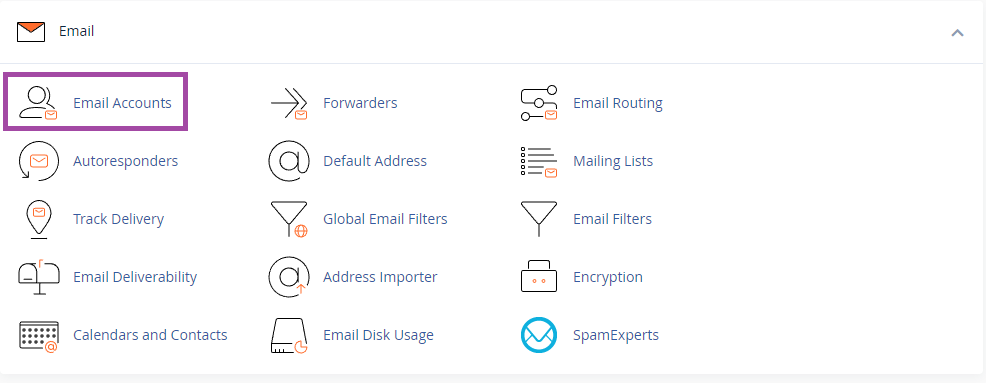
- Click Manage next to the email address you'd like to change
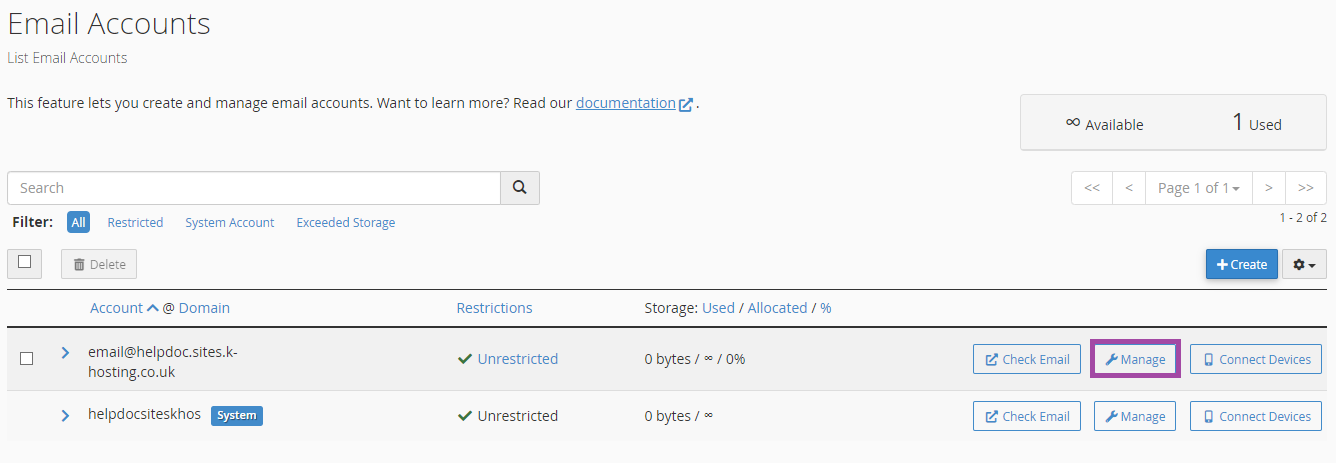
- Change the Storage Space quota or set to unlimited as required. Please note that disk space used by your mailbox counts towards your overall package disk limit.

- Click Update email settings to complete the process
