
PHP is a programming language and forms the basis of many modern content management systems like WordPress, Joomla and Drupal.
This article describes how to change a cPanel account's PHP version, add or remove PHP modules, change PHP options and how to enable functions. All actions are completed within cPanel for the domain you wish to change.
Changes to any of these settings - PHP Version, Extensions & Options - take effect virtually instantly. See the section below on Checking your current PHP settings.
PHP settings are accessed via cPanel > Software > Select PHP Version
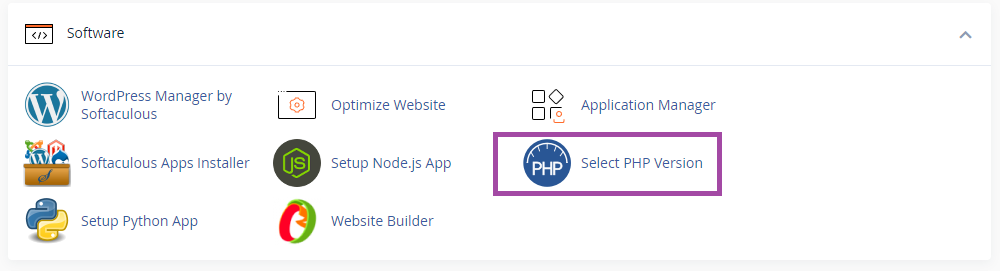
Changing your PHP version
When you click Select PHP Version you will be presented with the PHP Selector page on the PHP Extensions tab. The current PHP version is shown at the top and indicated with (current).
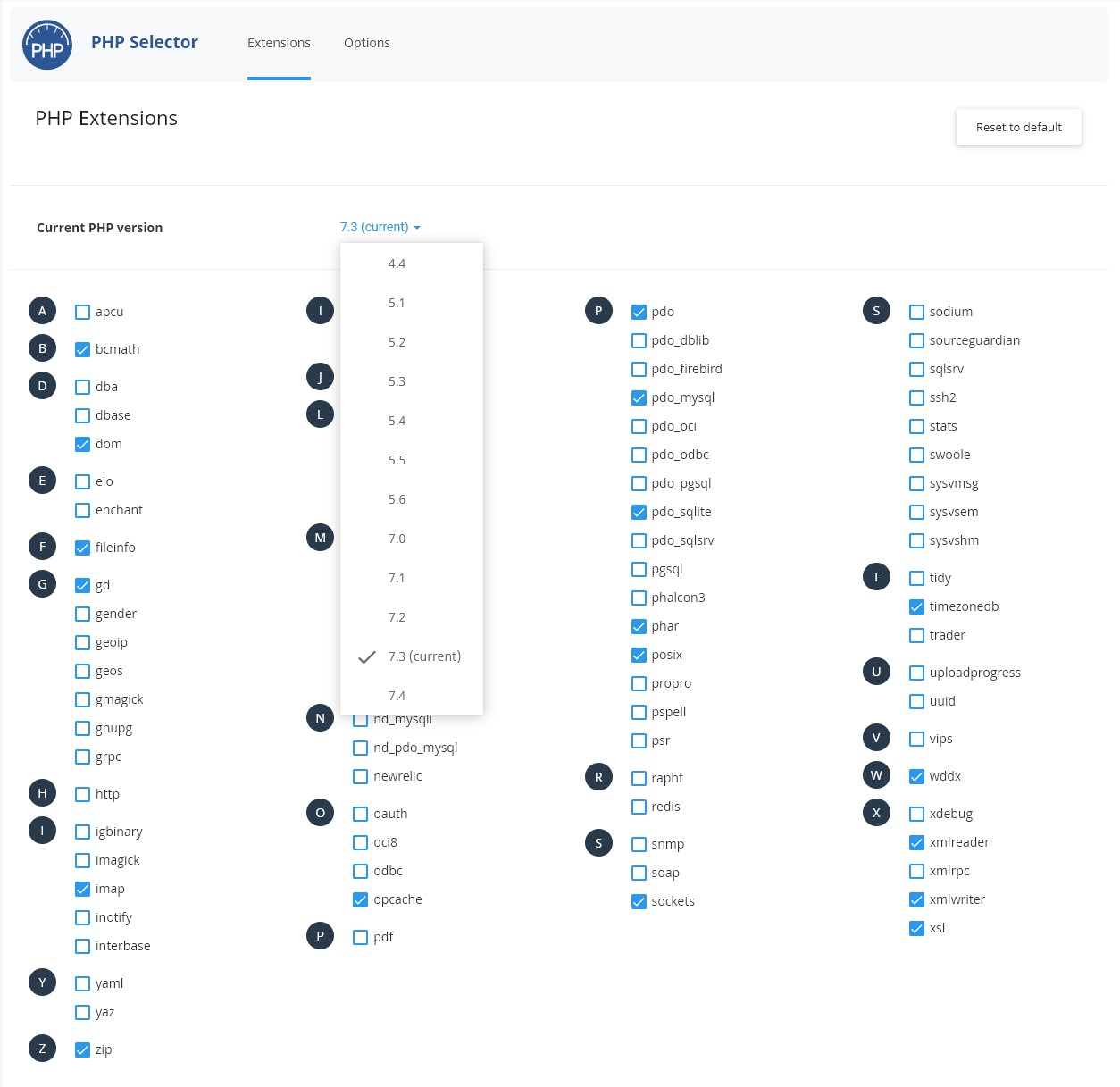
To change the PHP version for this cPanel - click the current version and select the required version from the drop-down and then click Set as Current.
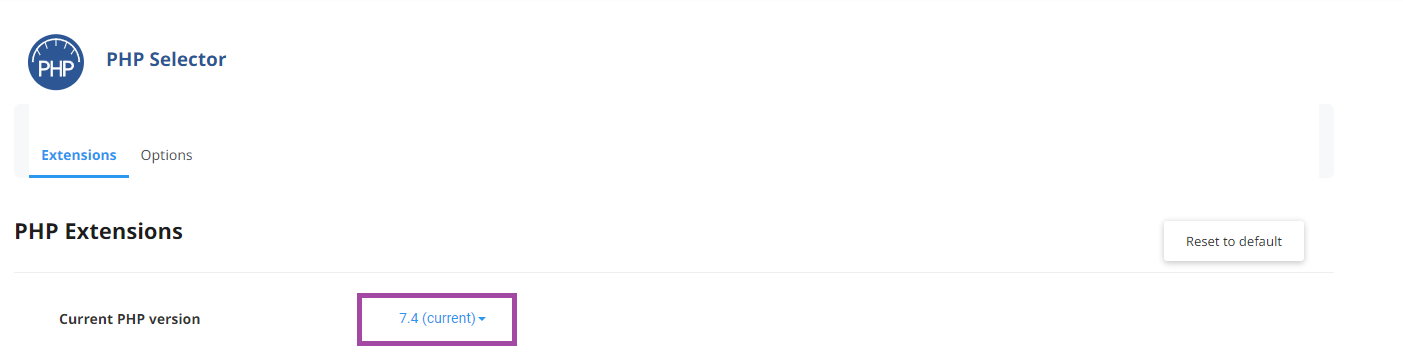
After changing the PHP version please ensure all required PHP Extensions are enabled and that your PHP Options settings are correct - checking and changing these are covered next in this guide.
We always recommend running the latest available version of PHP. PHP 8.x delivers major performance and security improvements over older versions. If your site requires an older PHP version, we also offer hardened, security-patched legacy versions.
Changing PHP Extensions
What is a PHP extension?
A PHP extension (sometimes also called PHP Module), as its name suggests, extends the PHP language with more functions. For example, the Imagick extension - external link opens in a new window provides a range of PHP functions relating to image manipulation. If you attempt to use any of these functions without activating this extension then your pages will return an internal server error.
For example, Magento has a list of required PHP extensions listed including DOM, and SOAP, which may not be enabled by default.
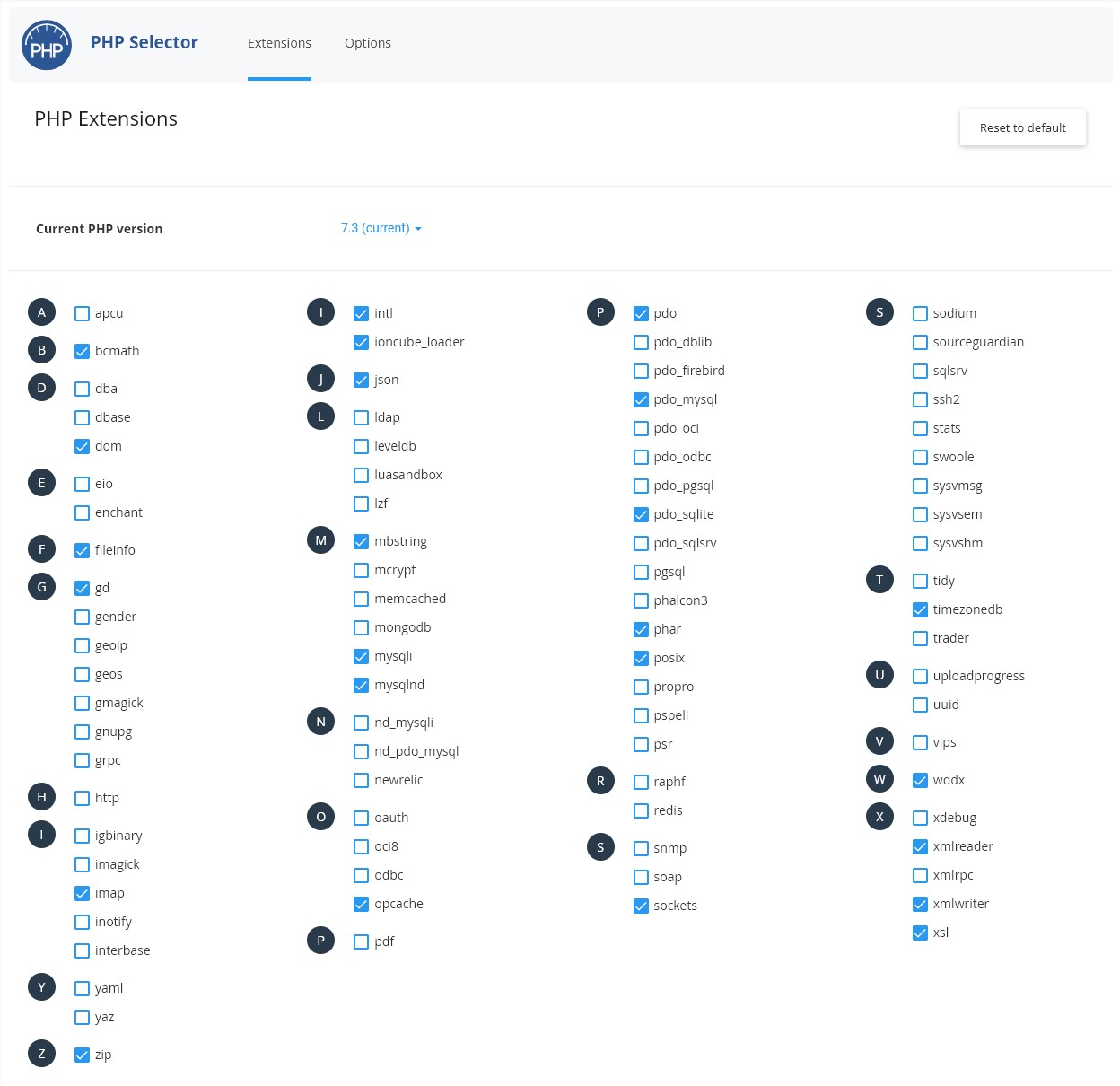
Enabling and disabling a module/extension
Depending on the PHP version you select you will see the PHP Extensions available, with the system default modules for that version selected. You can see them for PHP 7.3 in the screenshot above. You can enable modules by ticking, disable by unticking - changes will automatically save. You'll see a notification box confirming your actions at the top of the screen.

Selecting unnecessary PHP extensions to load at run-time can adversely affect the performance of your website because the server has to open more files in order to process your scripts.
This functionality should be used with care. Selecting incompatible extensions can cause intermittent or permanent errors or performance degradation - for example, the APC extension should not be used with PHP 5.4 and above.
Conversely, failing to select PHP extensions that are required by your web application can cause server errors and prevent it from working at all.
Changing PHP options
The PHP Options tab allows you to easily change a number of the common php.ini settings, without having to edit the php.ini file.
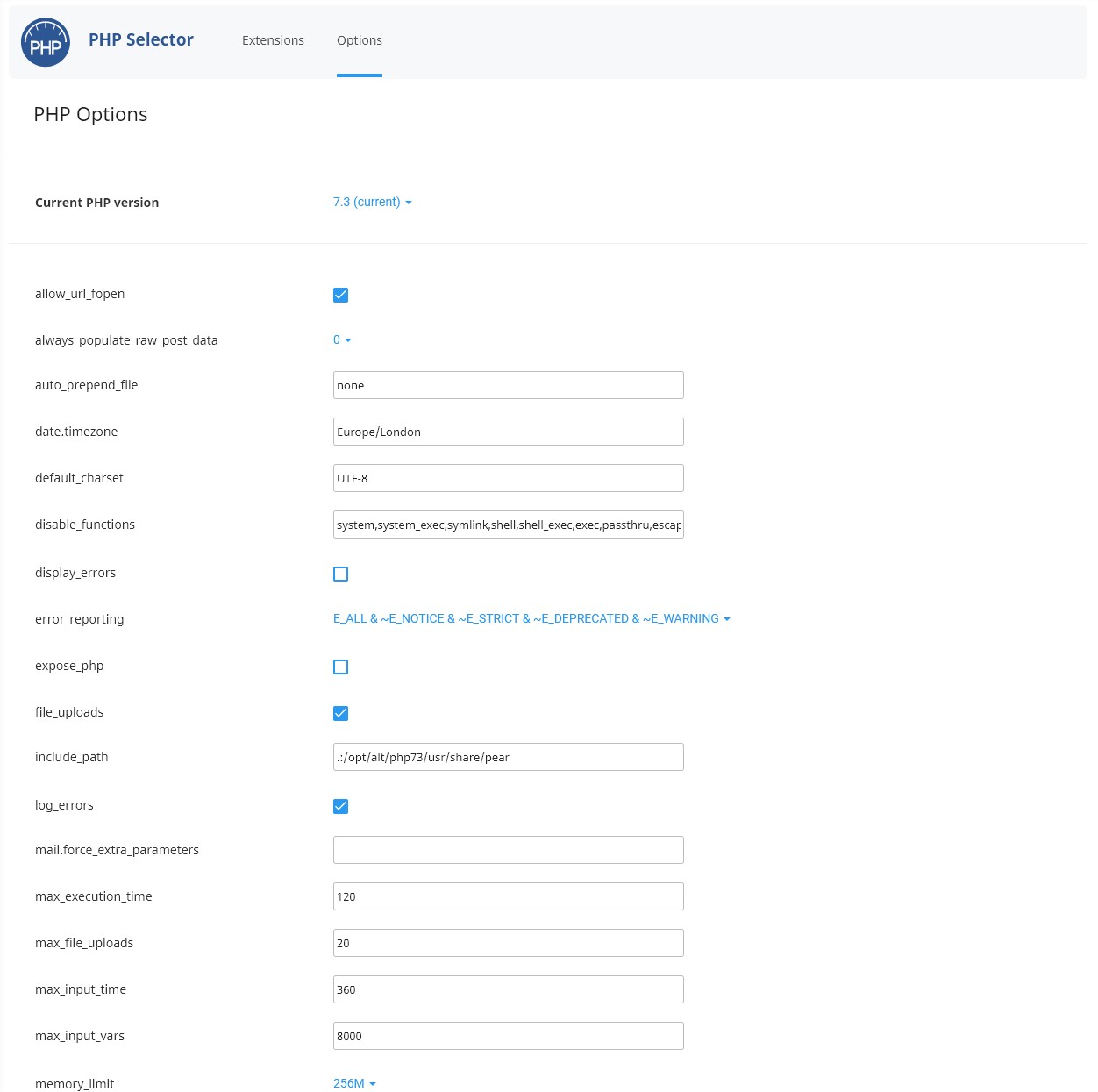
The options available here include date.timezone, max_execution_time, memory_limit and more.
To change an option you need to either click on its current value or check/un-check it's tick box - this will then either show you a drop-down of choices or allow you to edit the field depending on the option. Changes you make will be saved automatically.
Unless you have a specific issue the default settings are normally fine.
Please read the following section for more details on changing disabled_functions.
Enabling PHP functions
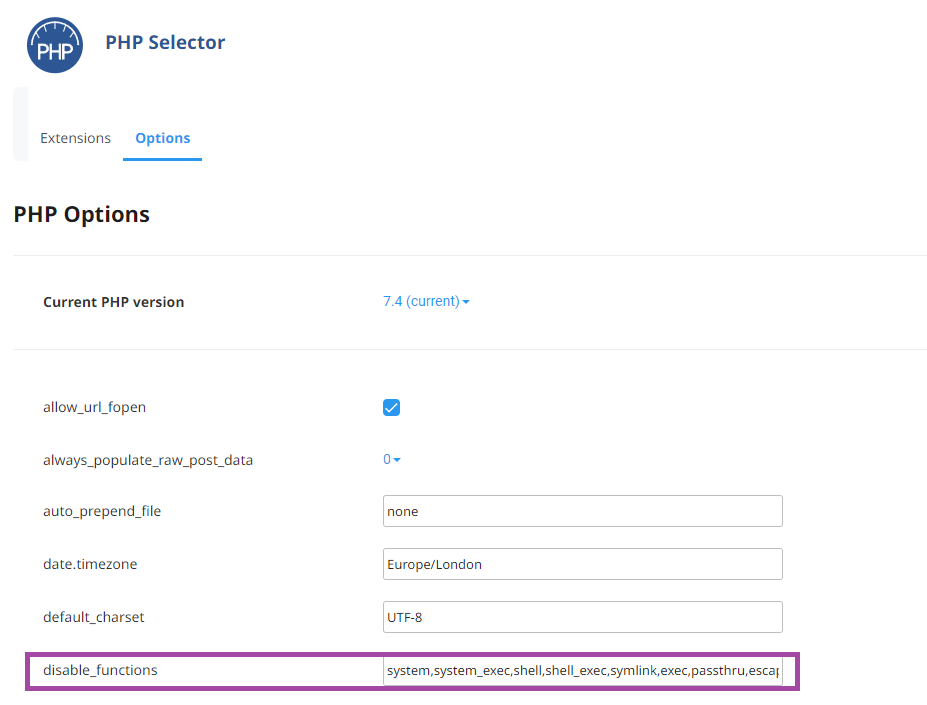
By default the following PHP functions are disabled. They can be found in the disabled_functions option.
system
system_exec
symlink
shell
shell_exec
exec
passthru
escapeshellarg
escapeshellcmd
proc_close
proc_open
ini_alter
dl
show_source
proc_get_status
proc_nice
proc_terminate
highlight_file
define_syslog_variables
posix_uname
posix_getpwuid
apache_child_terminate
posix_kill
posix_mkfifo
posix_setpgid
posix_setsid
posix_setuid
ini_restore
inject_code
define_syslog_variables
apache_setenv
eval
phpAds_XmlRpc
phpAds_remoteInfo
phpAds_xmlrpcEncode
phpAds_xmlrpcDecode
xmlrpc_entity_decode
To enable a function you should remove it from this comma-separated list. Be careful to ensure you don't leave any spaces and that there are single commas between each remaining function. Clicking outside the field or navigating away will save any changes.
php.ini files
Any php.ini files placed within your website's directory are ignored by the server. This is by design, for security reasons. Use the PHP Options tab in cPanel to make configuration changes instead.
Checking your current PHP settings
If you want to know what settings are in effect on your server, then create a PHP file containing the following code and browse to it using a web browser.
<?php phpinfo(); ?>
The page will return all of the PHP environment settings and module information.
To create this file, use File Manager in cPanel to create a new file named phpinfo.php inside your public_html directory. Paste the code above into the file and save it. You can then view the results by visiting https://yourdomain.com/phpinfo.php in your browser (replace yourdomain.com with your actual domain name).
Important: Remember to delete phpinfo.php once you have finished, as it exposes sensitive server configuration information.