
Contacts are added to allow additional people to receive copies of communications (e.g. invoices sent to your accounts department).
Add a new Contact
Log in to your Client Area.
- On the left hand side, under Your info, click New Contact.
- If this is the first Contact then Add New Contact will be selected by default and you can continue straight on to the details. If Contacts already exist you'll need to select Add New Contact from the Choose Contact dropdown and click the Go button.
Enter the contact's details under General.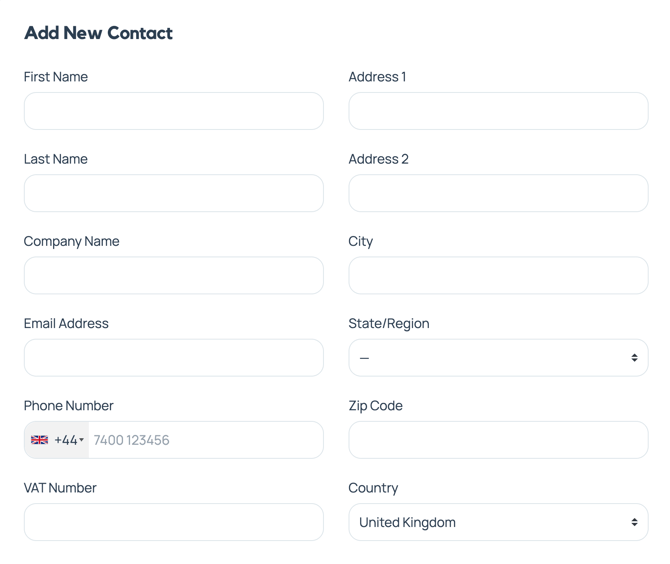
- Complete the remaining Address details and, under Email Preferences, tick which communications this contact will receive.
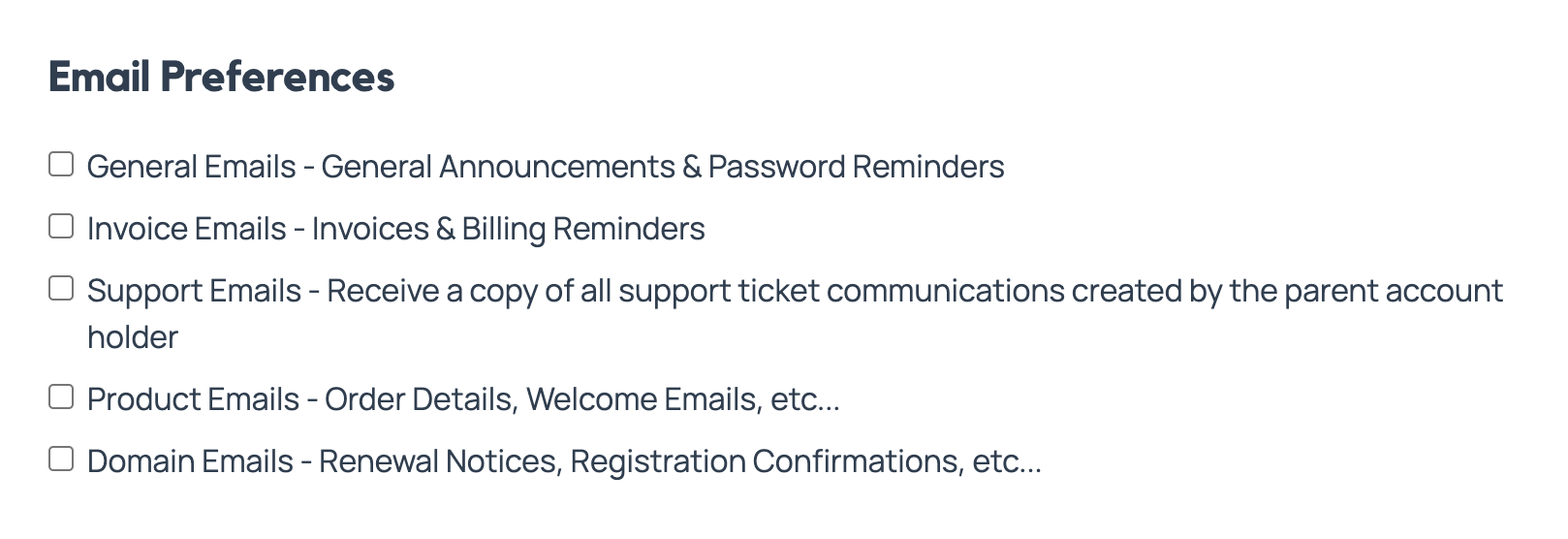
Click Save Changes to save this contact. To remove a contact later, select it from the Choose Contact dropdown and click Delete Contact.
Does a secondary contact receive Client Portal access?
No. Adding someone as a contact allows them to receive the selected communications, but it does not automatically create a Client Portal login.
If another person needs to sign in and manage the account, they must be added separately as a user and given the appropriate permissions. Please contact our Customer Support Team if you need help arranging this.
Does adding a contact change my primary email address?
No. Your existing primary account email will remain unchanged. The secondary contact will receive copies of the communication categories selected when their contact record is created.