
As your site grows, you add posts and pages and user accounts — your WordPress database grows too, accumulating previous versions of posts, pages, and other transient data. All of this extra weight can slow your site down, so it's a good idea to clean your database regularly.
The easiest way to do that is by using the LiteSpeed Database Optimiser - part of the LiteSpeed cache plugin that we strongly recommend running on any WordPress site you host on our LiteSpeed servers.
- Before running any database optimisation, take a full backup of your site. While the process is generally safe, database issues can occur — and having a reliable backup means you can always restore your site if something goes wrong.
- Access the database optimiser by selecting LiteSpeed Cache > Manage from the left hand menu. Then click the DB Optimiser tab.
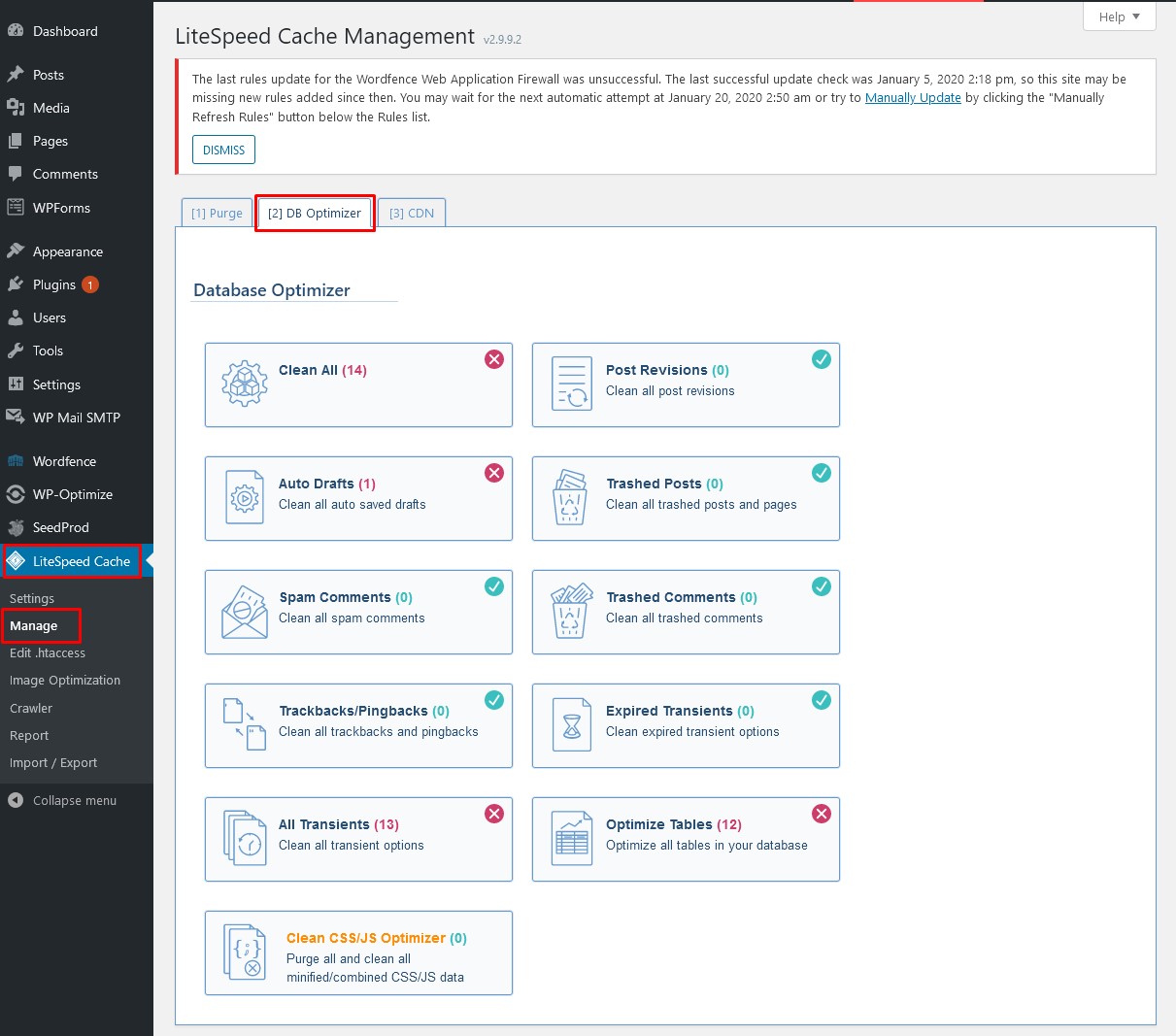
- You'll notice that some of the buttons have blue check-marks while others have red crosses. Checkmarks indicate that the area has already been cleaned up. If you see a red cross, that is your opportunity to run an optimisation.
Clean All
Press this button to clean up everything at once. It executes all of the listed clean-ups, except for Optimize Tables and Clean CSS/JS Optimizer.
Post Revisions
Removes all old post revisions from the database. You will sacrifice your ability to go into any of your post and restore previous versions of them. Only the currently-published version of each post will be saved.
Auto Drafts
When you edit a post, WordPress automatically saves drafts now and then. This is to protect you in case you unexpectedly lose your connection, or your computer crashes. If you know that all of your posts are either published or saved correctly as drafts, then it is safe to remove the automatic drafts.
Trashed Posts
This option permanently deletes any posts or pages that have been placed in the Trash.
Spam Comments
There should be no need to keep comments that have been marked as spam. This option erases them permanently.
Trashed Comments
This option permanently deletes any comments that have been placed in the Trash.
Trackbacks & Pingbacks
When other blogs link to you, it can create trackbacks or pingbacks. Some WordPress themes display these in the comments section. If displaying these external links is not important to you, press this button to clear them from the database.
Expired Transients
Transients are temporary values cached in the WordPress database — often the results of remote API calls — that are stored with an expiry time. This option clears all of the expired transients from the database.
All Transients
This option clears all of the transients in the database, whether expired or not. NOTE: It is normal for there to still be some transients left after cleaning. Transients are caused by plugins, and are regenerated every time you reload a page.
Optimize Tables
Use this button to optimize the database tables. NOTE: This function is not included in a Clean All.
Clean CSS/JS Optimizer
If you use the Minification and/or Combination functions for CSS and/or JavaScript, you can clean up the related data with this button. NOTE: This function is not included in Clean All. Tip: Consider scheduling regular database optimisations — either using the LiteSpeed Cache scheduler or a dedicated plugin — to keep your database lean without requiring manual effort.