SpamExperts lets you configure rules that override the spam filter for specific senders. Note that whitelisting only disables content filtering — it does not bypass all checks. If a sender's mail server is misconfigured, does not comply with open standards, or is listed on a real-time blacklist, whitelisting will not be possible. Blacklisting, however, always works.
Rules that block senders are called Blacklisting; rules that allow senders are called Whitelisting. You can block or allow by providing a full email address (e.g. john.smith@example.com) or a domain name only (e.g. example.com). Using a domain name will block or allow all traffic from that domain.
While SpamExperts offers many additional filtering options and rule lists, this article focuses on Sender rules for whitelisting (allowing) and blacklisting (rejecting). In SpamExperts, the "sender" refers to the originator of an inbound external email.
Accessing SpamExperts
cPanel > Email > SpamExperts
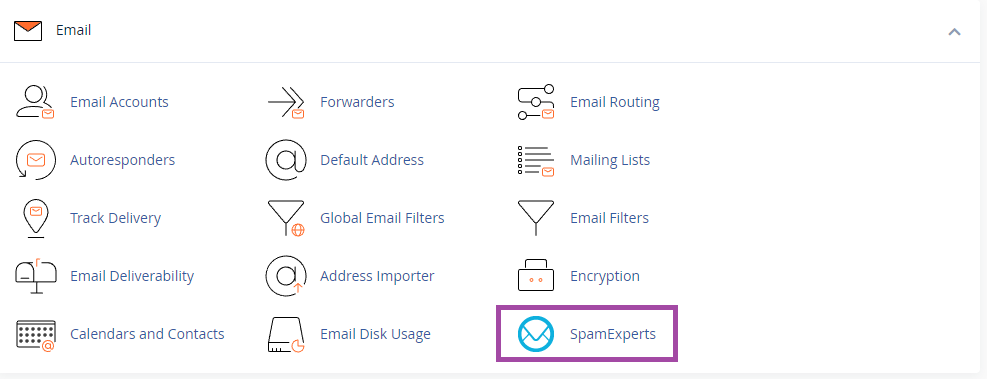
On the next screen, you will see a list of domains within your cPanel account. Click Login next to a domain to open the SpamExperts configuration for that domain.

Accessing the Sender whitelist and blacklist
There are two ways to add a sender (a remote email address or domain) to a blacklist or whitelist:
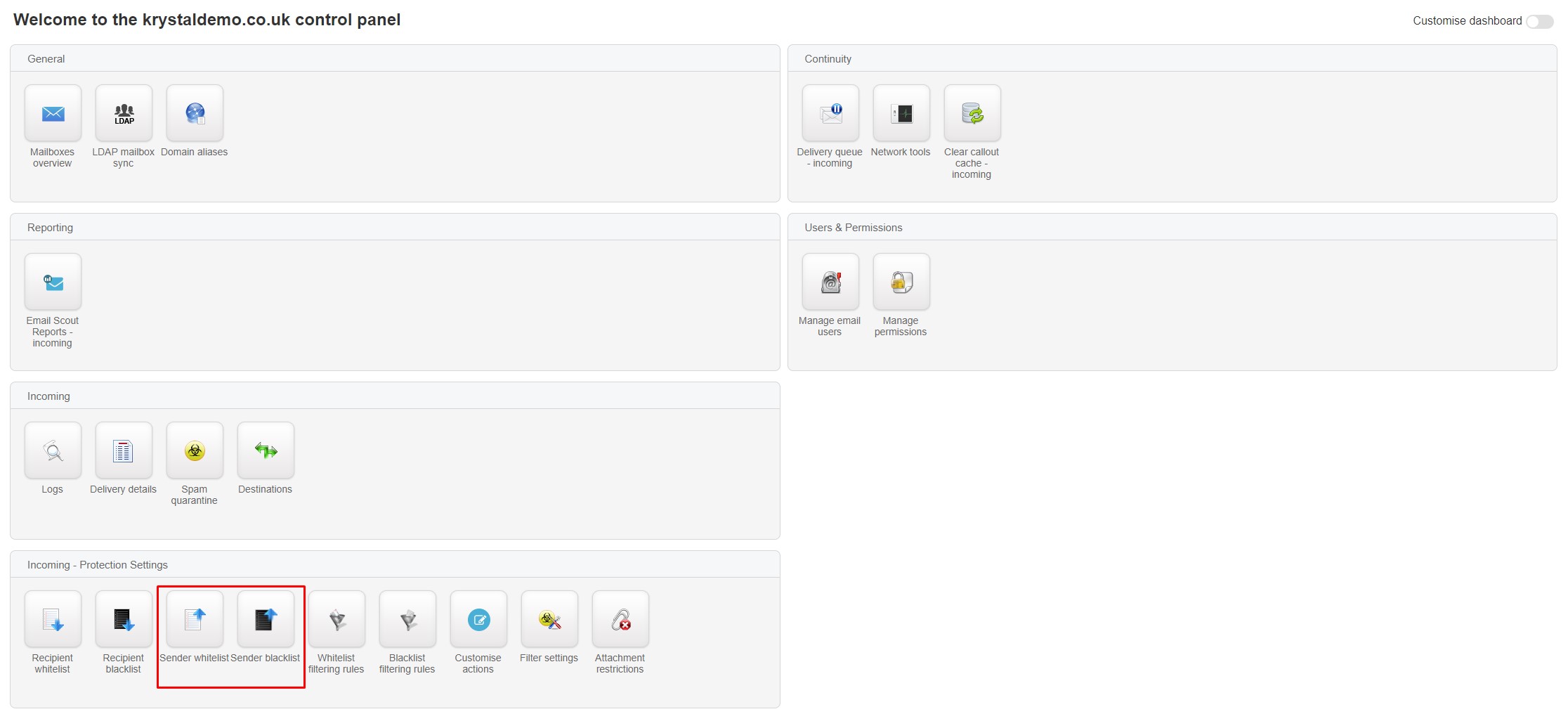
- From the dashboard, click the Sender whitelist or Sender blacklist button, then click + Add whitelist sender or + Add blacklist sender.
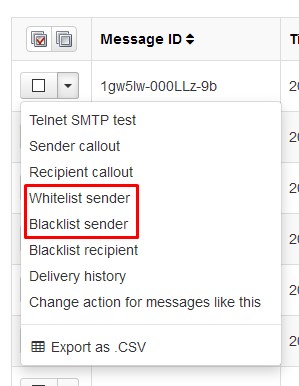
- From the Delivery log view, use the drop-down next to the email and select Whitelist sender or Blacklist sender.